
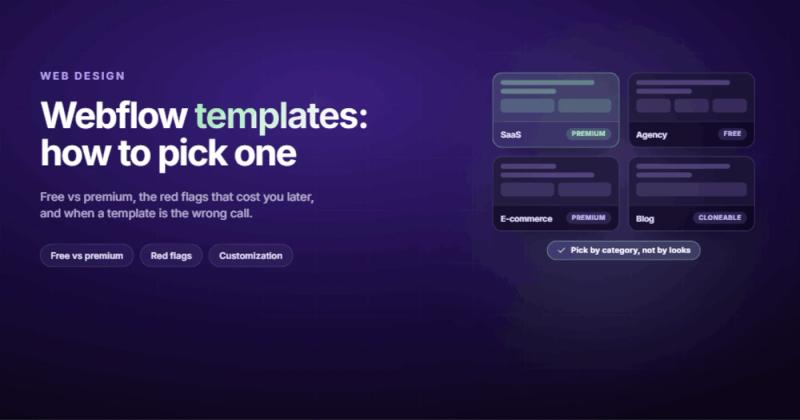
Last month a client asked me to "just pick a nice Webflow template" for their new site. Forty-five minutes later I was seven tabs deep in the template marketplace, comparing class naming conventions and checking whether the CMS collections could handle more than ten blog posts before everything broke. "Just picking a template" is never just picking a template.
Webflow templates are pre-built, fully responsive website designs you can customize visually in Webflow's Designer without writing code. The marketplace has over 2,000 options in 2026, ranging from free starters to premium designs at $79-$149. The best ones give you clean HTML/CSS, pre-wired CMS collections, and a solid foundation you can build on. The worst ones give you a pretty screenshot and a mess underneath.
That gap between "looks good in the preview" and "actually works when you add real content" is what this post is about.
What a Webflow Template Actually Is (and Isn't)
A Webflow template is a ready-made website design that opens directly in the Webflow Designer. You get the layout, the typography, the interactions, and (in good templates) a CMS structure already set up for blog posts, team members, case studies, or whatever the template was built for.
You don't get a locked theme you can only tweak around the edges. Every element is editable. You can change the layout, swap colors, add sections, delete pages, restructure the CMS. It's more like buying architectural blueprints than renting a furnished apartment.
One thing people mix up: Webflow templates aren't themes. WordPress has themes. Webflow has templates. The difference matters.
A theme is a skin you apply to existing content, and you stay dependent on whoever built it. They push an update? Hope it doesn't break your custom CSS. They abandon the theme? You're stuck with an unmaintained codebase. A template is a starting point you build from. You buy it once, it opens in your project, and from that point forward it's yours. No theme updates to worry about, no compatibility issues with plugins, no wondering if the next WordPress update will break your homepage.
This also means there's no "template lock-in." Once you've purchased a Webflow template and started customizing it, the original template code is irrelevant. You could change every single element and there's no dependency left on the original designer. Compare that to WordPress, where switching themes can mean rebuilding half your site because theme-specific shortcodes stop rendering.
Free vs Premium Webflow Templates: The Honest Breakdown
Here's something the template marketplace doesn't advertise loudly: free Webflow templates have the same technical quality as paid ones. Same responsive behavior, same clean HTML output, same CMS collections. Webflow doesn't ship broken free templates to upsell you.
So what does $79-$149 buy you?
| Feature | Free Templates | Premium Templates ($49-$149) |
|---|---|---|
| Responsive design | Yes | Yes |
| CMS collections | Basic (blog, maybe one more) | Multiple (blog, team, case studies, FAQ) |
| Pre-built pages | 3-5 pages | 10-20+ pages |
| Interactions/animations | Minimal or none | Scroll-triggered, hover states, page transitions |
| Design uniqueness | You'll see the same layout on other sites | More distinctive visual identity |
| Class naming | Hit or miss | Usually well-organized (Client-First, etc.) |
| E-commerce ready | Rarely | Often includes product pages and cart |
The real difference is page count and design variety. A free template gives you a homepage, maybe an about page, and a blog. A premium template gives you a full site with service pages, pricing, testimonials, contact forms, and utility pages like 404s and password protections already styled.
My honest take: if you're building a personal portfolio or a simple landing page, free templates are genuinely fine. If you're building a business site you want to look polished on day one, premium templates save you hours of work that would cost more than the template price if you were paying a developer. Check Webflow's pricing structure to understand the full cost picture beyond just the template.
There's a third option people forget about: cloneable templates from the Webflow community. These are free projects shared by designers that you can clone directly into your workspace. Quality varies wildly (some are polished, some are experiments), but the good ones rival premium marketplace templates. Search "Webflow cloneable" plus your industry, and you might find a starting point that costs nothing and fits your niche better than anything in the official marketplace.
One more thing on pricing. Premium templates are a one-time purchase, not a subscription. You pay $79-$149 once, and you own that template forever. Compare that to WordPress premium themes where some charge annually for updates and support. The Webflow pricing model is simpler, and you know exactly what you're paying before you commit.
How to Evaluate a Webflow Template (Before You Buy)
The preview page will always look great. Every template designer puts their best screenshots forward. Here's what actually matters once you open it in the Designer.
Check the class naming
Open the template preview, right-click, inspect element. If you see classes like div-block-47 and section-copy-2, walk away. Good templates use naming systems like Client-First or at least something logical and consistent. Bad class naming means every future edit becomes a guessing game.
Test the CMS with real content
Most template previews show 3-6 perfectly formatted blog posts with identical-length titles and matching thumbnail ratios. Add a post with a 120-character title and no image. Does the layout survive? Templates that break with real-world content are templates you'll fight against for the entire life of the site.
Check responsiveness at every breakpoint
Not just "does it look okay on mobile." Resize your browser slowly from desktop to tablet to mobile. Watch for text that overlaps, images that stretch, or navigation that disappears. A template that's only been tested at three fixed breakpoints will embarrass you on the devices your actual visitors use.
Count the interactions
Interactions are Webflow's secret weapon and its biggest performance trap. A template with 40 scroll-triggered animations looks incredible in the preview. It might also add 200ms to your page load. Check the interactions panel. If every element has a custom animation, ask yourself whether your visitors will actually notice, or whether you're paying for motion that slows things down.
Look at the style guide page
Good templates include a style guide page that shows every heading, paragraph, button, and form element in one place. This is the template designer telling you "I thought about the system, not just the homepage." If there's no style guide, the template was probably built page by page rather than as a design system, and you'll feel that inconsistency when you start adding your own pages.
Best Webflow Templates by Category (2026)
I'm not going to list 25 templates with identical two-sentence descriptions. Instead, here are the categories that matter and what to look for in each one. The Webflow template marketplace changes constantly, so specific template names matter less than knowing what a good template looks like for your use case.
SaaS and startup templates
SaaS templates need to do three things well: explain the product clearly above the fold, show social proof, and make the pricing page easy to update. Look for templates with a features section that uses CMS collections (not hard-coded cards), a testimonials collection, and a changelog or updates page. Saasplex ($129), Growth ($79), and Venture ($79) are solid picks in this category right now.
Watch out for SaaS templates that prioritize flashy hero animations over clear messaging. Your visitors are evaluating software, not watching a demo reel. The best SaaS templates I've seen lead with a one-sentence value proposition and a screenshot of the product. That's it. No parallax scrolling. No animated gradient backgrounds. Clarity beats motion every time.
Also check that the pricing page uses a structure you can actually maintain. Some templates hard-code pricing tiers as three static columns, which means every price change requires opening the Designer. Better templates use CMS collections for pricing tiers, so your team can update prices without touching the design.
Agency and portfolio templates
These live or die on the project showcase. The CMS collection for case studies needs to support rich content (not just an image and a paragraph), filterable categories, and ideally a next/previous navigation pattern. If you're running a web design agency, the template's case study pages should give you room to tell the story of each project.
Awake and Flavor are strong agency templates. Both use CMS-driven project pages with enough structure to show process, not just final screenshots.
One thing to watch: agency templates tend to load heavy on the homepage because the portfolio grid is pulling in full-resolution project images. Make sure the template lazy-loads project thumbnails and uses reasonably sized preview images. I've seen agency templates where the homepage pulls in 4MB of project images before the visitor scrolls past the fold.
E-commerce templates
E-commerce in Webflow is still more limited than Shopify, so template choice matters more here. You need product pages with variant support, a cart that doesn't feel bolted on, and collection pages that handle 50+ products without becoming a wall of thumbnails. Check that the template supports Webflow's native e-commerce or clearly states which third-party integration it's designed for.
Pay attention to the product filtering. Some e-commerce templates have a pretty filter sidebar that's entirely visual, with no actual Webflow filtering logic behind it. Toggle the filters in the live preview and see if the product grid actually responds. If it doesn't, you'll need to build that functionality yourself or use a third-party solution like Jetboost or Finsweet Attributes.
Also worth checking: does the template include a wishlist, size guide, or product comparison feature? These aren't essential for every store, but rebuilding them from scratch adds significant development time if you realize you need them after launch.
Blog and content templates
The blog template category is where I see the most corners cut. A good blog template needs: a CMS collection with categories and tags, a functional search or filter system, related posts logic, and an article layout that handles long-form content without falling apart. Test it with a 3,000-word post. If the reading experience is bad, your readers will notice before you do.
The article page layout is the real test. Does the template use proper heading hierarchy? Is there enough white space between paragraphs? Do images render at a reasonable size or blow up to full-width regardless of their content? A blog template that makes reading comfortable at 1,500 words and still works at 5,000 words is worth its price.
Check the content rendering for code blocks, tables, and blockquotes too. Many blog templates only style paragraphs and headings, then fall apart when you add a comparison table or an embedded code snippet. If your blog covers technical topics, this will bite you on the third post.
Landing page templates
Landing pages are the one category where free templates genuinely compete with premium. You only need one page, you probably won't add to it over time, and the conversion elements (hero, features, testimonials, CTA) are straightforward. Pick one with a clean form integration and good mobile layout. Don't overthink it.
The one thing worth spending extra on: form handling. Some landing page templates wire up Webflow's native form submission. Others pre-integrate with tools like Zapier or Make. If you need the form data to go somewhere specific (your CRM, your email tool, a Slack channel), check the form setup before buying. Rebuilding form routing after launch is one of those tasks that takes three hours to do right and three minutes to describe incorrectly as "trivial."
Template Red Flags That Cost You Later
I once bought a premium template that looked incredible in the preview. Clean lines, smooth animations, beautiful typography. Then I opened it in the Designer and found 200+ custom classes, no naming convention, and interactions nested four levels deep. I spent more time untangling that template than it would have taken to build from scratch. That $129 didn't save me anything.
Here are the red flags I look for now.
No responsive breakpoints below tablet. Some template designers test on desktop and tablet, then let Webflow's default stacking handle mobile. This produces usable but ugly mobile layouts. If the template preview doesn't explicitly show mobile screenshots, that's a sign.
Hard-coded content where CMS should be. If the testimonials section has three static text blocks instead of a CMS collection, the designer built a brochure, not a template. You'll need to rebuild those sections to make them editable by non-developers.
Interactions on everything. Scroll-triggered fade-ins on every section. Hover animations on every card. Page transitions on every link. It looks polished until you check performance. Run the template through Google PageSpeed Insights before buying. If the demo site scores below 80 on mobile, those animations are costing more than they're adding.
No 404, no password, no utility pages. These are the pages nobody looks at in the preview and everybody needs in production. A template without utility pages is a template that was built for the sale, not for the project.
Last updated more than 12 months ago. Webflow ships updates regularly. Templates that haven't been touched in over a year may use deprecated features or miss newer capabilities like Webflow's page branching or updated CMS APIs.
When a Template Isn't the Answer
Templates are a starting point, not a destination. And sometimes the starting point is wrong.
If your business needs a site that looks nothing like anything in the marketplace, a template adds complexity instead of removing it. You'll spend hours stripping out sections, renaming classes, and fighting against someone else's design decisions. At that point, a custom Webflow build from a blank canvas is faster and produces a cleaner result.
If you need heavy CMS customization (custom fields, relational data, complex filtering), most templates won't have that infrastructure built in. You'll need to rebuild the CMS structure anyway, which means the template's main value (saving you setup time) disappears.
If your brand has an established design system with specific typography, spacing, and component patterns, forcing it into someone else's template framework creates friction. It's like wearing someone else's suit and trying to alter it. Sometimes it's cheaper to buy the fabric and have it tailored.
And there's a middle ground nobody talks about. Sometimes the right move is buying a template, stripping it down to its CMS structure and class naming, and designing new pages on top of that foundation. You're not using the template's design. You're using its architecture. I've done this on projects where the client wanted a fully custom look but the template's CMS setup and class system were too good to rebuild from scratch. Think of it as buying the chassis and building your own body on top.
Here's the question I ask clients: can you get 70% of the way there with a template? If yes, buy the template and customize the remaining 30%. If you're looking at a template and thinking "I'd need to change most of this," you don't need a template. You need a designer.
Customizing a Webflow Template Without Breaking It
You bought the template. You've opened it in the Designer. Now what?
First rule: don't rename existing classes until you understand the naming system. Templates built with Client-First or similar methodologies use prefixes and suffixes that control inheritance. Rename section_header to hero-area and you might break styling on 15 other elements that share the base class. Spend 10 minutes reading through the class panel first. Look for patterns. Understand the system before you start changing parts of it.
Second rule: add, don't replace. Need a new section? Build it using the template's existing classes and patterns. Copy a section that's close to what you want, then modify it. This keeps your additions visually consistent with the template's design system. The moment you start creating your own parallel class system alongside the template's, you've created a maintenance problem that only gets worse over time.
Third: swap content before you swap design. Put your actual copy, your real images, your genuine testimonials into the template before you start moving things around. Half the time, the template works better than you expected once it has real content. The other half, the changes you need to make become obvious because you can see what's actually broken instead of guessing.
Fourth: test at every breakpoint after every change. This sounds tedious because it is. But templates are balanced systems. Change the padding on a section at desktop, and the mobile layout might collapse. Increase a font size, and the tablet breakpoint might overflow. Get into the habit of checking desktop, tablet landscape, tablet portrait, and mobile phone after every structural edit. Fixing responsive issues in batches at the end is ten times harder than catching them as you go.
If you're migrating content from another platform into your new Webflow template, our guide on moving from Figma to Webflow covers the design-to-development handoff that applies to template customization too.
Webflow Templates and SEO: What to Check
A template can give you a head start on SEO or it can bury you in technical debt. Here's what to verify before you commit.
Heading hierarchy. Check that the template uses one H1 per page and follows a logical H2 > H3 structure. Templates that use headings for visual sizing (making something an H3 because the font size looks right) will hurt your SEO from day one.
Page speed. Templates with heavy custom fonts, uncompressed images in the preview, or excessive JavaScript interactions will score poorly in Core Web Vitals. Webflow's HTML output is clean, but template designers can still bloat it with unnecessary complexity.
Meta fields. Good templates include custom fields in the CMS for meta titles, meta descriptions, and OG images. If the template doesn't have these, you'll need to add them yourself through Webflow's page settings or custom fields. Not hard, but it's a sign of how much thought went into the template.
Semantic HTML. Open the template in the Designer and check that sections use proper semantic elements. Headers should be in <header>, navigation in <nav>, main content in <main>, footer in <footer>. Templates that wrap everything in generic <div> blocks miss free accessibility and SEO points. Webflow's documentation on semantic HTML tags explains why this matters.
Image alt text. Preview a few pages and inspect the images. If every image has empty alt text or, worse, alt text that says "image" or "screenshot," the template designer didn't think about accessibility or SEO. You'll need to go through every image on the site and write proper alt attributes. Not a deal-breaker, but it's work you should know about upfront.
Sitemap and robots. Webflow handles sitemaps automatically, but some templates create pages (like style guides or component libraries) that shouldn't be indexed. Check whether the template has any pages with "noindex" settings that need attention, and whether the URL structure follows a clean, logical hierarchy.
FAQ
Are Webflow templates worth it?
Yes, if you pick the right one. A well-built template saves 20-40 hours of design and development work. The key is evaluating the class structure and CMS setup, not just the visual design. Free templates work fine for simple sites. Premium templates ($49-$149) make sense for business sites where you'd otherwise pay a developer to build those pages from scratch.
Can I use a Webflow template for a client project?
Yes. Webflow's template license allows commercial use. You buy the template, customize it for your client, and transfer the project to their hosting. Many agencies (including ours) use templates as starting points for client projects when the budget doesn't support a fully custom build.
How do I customize a Webflow template?
Everything is customizable in the Webflow Designer. You can change layouts, colors, typography, images, animations, CMS structure, and page organization. Start by swapping in your real content before making design changes. This shows you what actually needs adjusting versus what already works.
Are free Webflow templates any good?
Technically, yes. Free templates have the same responsive behavior and clean code output as premium ones. The trade-off is fewer pre-built pages, simpler designs, and less CMS infrastructure. For portfolios, landing pages, and simple business sites, free templates are a solid choice.
What's the difference between Webflow templates and WordPress themes?
A WordPress theme is a skin you apply to existing content, and you stay dependent on the theme for updates and compatibility. A Webflow template is a one-time starting point. Once you buy it and open it in the Designer, it's fully yours. No update dependencies, no plugin conflicts, no compatibility concerns with future platform changes.
How many templates does Webflow have?
Over 2,000 as of 2026, across categories like SaaS, agency, portfolio, e-commerce, blog, and personal sites. The marketplace adds new templates regularly, and community-built cloneable templates expand the options further beyond the official marketplace.
Can I preview a Webflow template before buying?
Yes. Every template has a live preview you can click through. You can also open free templates directly in the Designer to explore the structure. For premium templates, the live preview is your best evaluation tool before purchasing.
Do Webflow templates affect site speed?
They can. Templates with heavy animations, unoptimized images, or excessive custom code will slow your site down. Always check the template's demo site with PageSpeed Insights before buying. A template scoring below 80 on mobile performance is carrying baggage you'll need to clean up later.
Can I use the same template on multiple sites?
Each template purchase covers one project. If you want to use the same template for a second site, you need to buy it again. Some designers offer multi-use licenses at a discount, but the standard marketplace license is one purchase per project.
Where do I find the best Webflow templates?
The official Webflow template marketplace is the primary source, with over 2,000 options. Third-party marketplaces like Flowbase, BRIX Templates, and individual designer portfolios offer additional choices. Community cloneables on the Webflow Showcase are a free alternative. Start with the official marketplace and expand your search if you don't find what you need.
Should I hire a developer or use a template?
If a template gets you 70% of the way to what you want, use the template and customize the rest. If you need something that looks nothing like existing templates, or if your CMS requirements are complex (custom integrations, advanced filtering, membership areas), a custom build from a developer will save you time in the long run. The template's price is small compared to the hours of fighting a bad starting point.
Comments