
You hit update on a plugin. Your host silently upgraded PHP overnight. You installed a new theme and something somewhere decided it hated that decision. Either way, you're now staring at this:
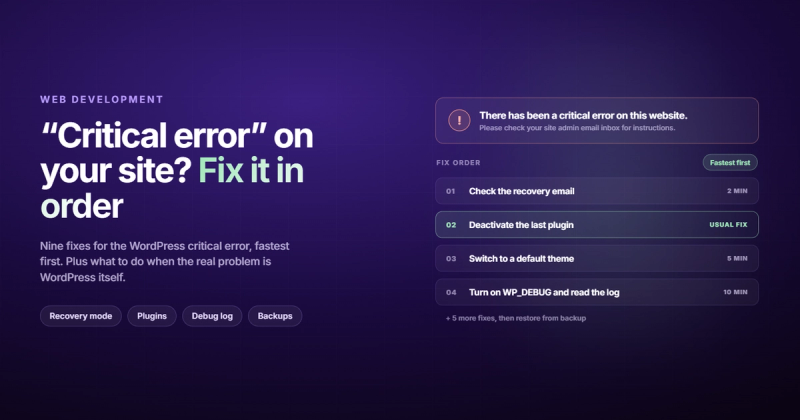
"There has been a critical error on this website. Please check your site admin email inbox for instructions."
Your first instinct is that something got deleted. It didn't. Your posts, pages, images, and database are all still there. WordPress just can't display any of it because something in the code broke on the way out.
This is a PHP execution problem, not a data problem. That distinction matters because it changes exactly how you fix it.
Below is every fix, in order from fastest to most involved. Start at step one. If it works, you're done.
What "There Has Been a Critical Error on This Website" Actually Means
WordPress introduced this message in version 5.2 as a replacement for the older "White Screen of Death." Same underlying problem, marginally more helpful message. At least it tells you to check your email now.
When WordPress runs, it executes PHP code to pull your content from the database and build the page. If that execution hits a fatal error it can't recover from, the whole page fails to render. You get the critical error message instead of your website.
Think of it like a relay race. Each runner passes the baton to the next. If someone drops it and can't pick it up, the race stops. Your data is still there. The race just stopped mid-lap.
Your content is safe. Your theme settings are safe. Your database is untouched. All you're restoring is the ability to run the code that displays it.
What Usually Causes It
In rough order of how often they're actually the culprit:
- A plugin update that introduced a bug or a conflict with your PHP version or another plugin. If you updated several plugins at once, diagnosing which one caused it gets annoying fast.
- A PHP version mismatch: your host upgraded PHP and a plugin that worked fine on 7.4 breaks on 8.2. Frustrating because it's nothing you did directly.
- A theme update that introduced bad code or a conflict with your current WordPress version.
- PHP memory exhaustion: WordPress ran out of memory mid-execution. The default limit is 40MB, which isn't enough for plugin-heavy sites.
- Corrupted WordPress core files from an interrupted update.
- Malware injecting broken PHP into your site files. Less common than the above, but it happens on sites that haven't been updated in a while.
Nine times out of ten it's a plugin or a PHP version. Start there.
How to Fix "There Has Been a Critical Error on This Website"
Work through these in order. Each step takes less than 10 minutes. The later ones are more involved, but most people never get there.
Step 1: Check Your Recovery Email
When WordPress hits a critical error, it tries to send an email to your admin address. Subject line: "Your Site is Experiencing a Technical Issue." Inside is a link to enter recovery mode, which lets you log into the dashboard even with the error active.
If that email arrived: click the recovery link, log in, and go to Plugins. Deactivate them one at a time, reloading the site after each one. When the site comes back, the last plugin you deactivated is the problem. Delete it, roll it back to a previous version, or contact the developer.
If no email arrived: check your spam folder first. If it's genuinely not there, either your email deliverability isn't configured properly or the error stopped WordPress before it could send anything. Move to step two.
Step 2: Disable All Plugins via FTP
This is the most reliable fix when recovery mode isn't available.
Connect to your server via FTP. FileZilla is free and works fine. If your host has a file manager built into cPanel, that works too.
Navigate to wp-content/plugins/. Rename the entire plugins folder to something like plugins-disabled. WordPress looks for that folder name specifically, so renaming it disables every plugin at once without deleting anything.
Reload your site. If it loads, rename the folder back to plugins. Then go inside and rename each individual plugin folder one at a time. Reload after each rename. When the error comes back, you've found the culprit.
Step 3: Switch to a Default WordPress Theme
If disabling plugins didn't fix it, the problem might be in your theme.
Via FTP, navigate to wp-content/themes/. Rename your active theme folder by adding -old to the end. WordPress will fall back to whatever default theme it can find: Twenty Twenty-Four, Twenty Twenty-Three, or similar.
Reload. If the site loads with the default theme, your theme was the issue. Check for an update, roll back to a previous version through your host's backup system, or contact the theme developer.
Step 4: Enable Debug Mode
If steps two and three didn't find the problem, you need the actual error message. WordPress can log it, but it doesn't by default.
Via FTP, download wp-config.php from your server root. Open it in a text editor. Find this line:
/* That's all, stop editing! Happy publishing. */Add these three lines just before it:
define( 'WP_DEBUG', true );
define( 'WP_DEBUG_LOG', true );
define( 'WP_DEBUG_DISPLAY', false );
Setting WP_DEBUG_DISPLAY to false keeps error messages off the public-facing site. Setting WP_DEBUG_LOG to true writes them to wp-content/debug.log.
Upload the modified wp-config.php back to your server. Then open wp-content/debug.log via FTP. Look for lines labeled Fatal error. The file path in those lines will tell you exactly which plugin, theme, or file is breaking.
Step 5: Increase the PHP Memory Limit
If the debug log shows something like "Allowed memory size of X bytes exhausted," WordPress ran out of memory before it could finish loading. The fix is one line.
In wp-config.php, add this line before the stop-editing comment:
define( 'WP_MEMORY_LIMIT', '256M' );Your host may override this with their own server-side limits. If setting it in wp-config.php doesn't help, contact your host and ask them to raise the PHP memory limit directly on the server. Most managed WordPress hosts have this as a one-click setting in their dashboard.
Step 6: Update or Roll Back Your PHP Version
Log into your hosting control panel and look for a PHP version manager. On cPanel-based hosts it's usually under Software or MultiPHP Manager.
WordPress 6.x runs well on PHP 8.2 and 8.3. If you're on PHP 7.4 or older, upgrading often resolves errors caused by deprecated functions. The catch: some older plugins break on PHP 8.x. Check your plugin documentation before upgrading.
If you recently upgraded PHP and that triggered the error, rolling back to your previous version buys you time to identify which plugin needs updating. You can check which PHP versions still receive security patches at php.net/supported-versions.
Step 7: Reinstall WordPress Core Files
This is the fix for corrupted core files. It sounds drastic. It isn't. You're not touching your content, themes, or plugins.
Download the latest version of WordPress from wordpress.org. Unzip the downloaded file. Inside you'll find a wp-admin folder and a wp-includes folder. Upload just those two folders to your server via FTP, replacing the existing ones. Skip wp-content entirely (that's where your themes, plugins, and uploads live).
This takes about five minutes and replaces any corrupted core files without touching your content.
Step 8: Clear the Site Cache
Sometimes a caching plugin stores a broken version of the page and keeps serving it even after you've fixed the underlying error. You fix the plugin, reload the site, still see the error. It's the cache.
If you can access the admin panel via recovery mode, go to your caching plugin (WP Rocket, W3 Total Cache, LiteSpeed Cache) and purge everything. Most managed WordPress hosts also have a "Clear Cache" button in their dashboard.
If you can't access the admin panel, log into your hosting control panel and look for a cache management option there.
Step 9: Scan for Malware
If nothing above worked, something malicious may have injected broken PHP into your site files. Less common than a plugin conflict, but it happens, particularly on sites that haven't been updated for months.
The free version of Wordfence handles most malware scans on WordPress. Your host may also offer built-in malware scanning. Most managed WordPress hosts do. If malware is found, clean the infected files or restore from a known-good backup.
How to Stop It from Happening Again
The most effective thing you can do costs nothing: stop updating everything at once. Update one plugin, check the site, update the next. Tedious, yes. But when something breaks you'll know exactly what caused it.
Use a staging environment before pushing updates to production. Most managed WordPress hosts (WP Engine, Kinsta, SiteGround) offer staging with one click. Push plugin updates to staging first, check that everything still works, then push to production. This eliminates the "my site is down on a Monday morning" situation almost entirely.
I once accidentally deleted a production WordPress database and then discovered I'd also accidentally deleted the WPVivid backup from Google Drive on the same afternoon. At that point there were two choices: rebuild from scratch or call it a lesson learned. I chose both. Now everything backs up to three separate locations automatically. The 3-2-1 rule (three copies, two different storage types, one off-site) exists precisely for this reason.
Keep PHP at a stable, well-supported version. PHP 8.2 is the right choice for most WordPress sites right now. Wait a few months after any new PHP release before upgrading, so the plugin ecosystem has time to catch up.
Consider managed WordPress hosting if you're on shared hosting. The difference in how updates are handled, and in overall reliability, is significant once you've spent three hours debugging a plugin conflict at the worst possible time.
When the Real Problem Is WordPress Itself
Here's what most troubleshooting guides skip: some sites get this error every few months like clockwork. A plugin update breaks something, a PHP upgrade triggers a conflict, two plugins that coexisted peacefully for years decide they no longer get along. You fix it, the site comes back, and three months later you're doing it again.
If that's your situation, the question isn't how to fix this specific error. The question is whether you're spending time and attention on your platform instead of your business.
WordPress was built in 2003. It powers 43% of the web because it's flexible and has a massive plugin ecosystem. But that flexibility carries a maintenance cost. A typical WordPress site runs 20 or more plugins, written by different developers, maintained on different timelines, running on shared PHP. Each one is a potential conflict. Each update is a potential trigger for this exact error.
Some businesses reach a point where the maintenance burden outweighs the cost of switching platforms. Webflow, for example, doesn't have a third-party plugin ecosystem in the same sense, so there are no plugin conflicts to manage. Updates are handled by Webflow, not by dozens of separate plugin authors. There's no PHP configuration to tune and no PHP version to upgrade. The tradeoff is less flexibility: it's not the right platform for complex e-commerce or highly customized applications. But for marketing sites and lead generation sites, the time savings are real.
We've helped businesses migrate from WordPress to Webflow specifically to get off this maintenance treadmill. If your site is a business asset and you're regularly firefighting technical issues instead of publishing content and running campaigns, it's worth understanding what the switch actually involves. Our Webflow vs. WordPress comparison covers the honest tradeoffs in detail.
It's not the right answer for every site. But it's worth asking the question.
FAQ
What does "there has been a critical error on this website" mean?
It means WordPress encountered a fatal PHP error that stopped the page from loading. PHP is the language WordPress runs on, and when a piece of code fails partway through execution, nothing renders. Your content and database are unaffected. You're restoring the ability to display content, not recovering lost content.
Why does this error keep happening on my WordPress site?
Recurring critical errors usually have one of three root causes: outdated plugins that conflict with your current PHP version, insufficient PHP memory for the number of plugins you're running, or a low-quality plugin that hasn't been maintained in years. If you're patching the same error every few months, another patch isn't the answer. Finding and removing the underlying cause is.
Can this error delete my content or database?
No. The critical error is a code execution failure, not a data failure. WordPress can't render the page, but your posts, pages, images, and database records are completely intact. The error affects how WordPress displays your content, not the content itself.
What if I don't have FTP access?
Most hosts provide a file manager in the control panel. On cPanel-based hosts it's called "File Manager" and it's listed in the main dashboard. It works exactly like FTP for renaming folders and editing files. If you're not sure where to find it, your host's documentation will have it.
How long does it take to fix the WordPress critical error?
If the recovery email works and a single plugin is the cause, you can fix it in under 10 minutes. If you're working through FTP and testing plugins one at a time, budget 30 to 45 minutes. Reinstalling core files or scanning for malware can take longer, but those are the less common scenarios for a first-time occurrence.
Does the WordPress critical error affect my SEO?
Yes, if the site stays down long enough. A site that returns an error page for several hours can get flagged in Google Search Console, and if Googlebot crawls during the outage, rankings for affected pages can drop. Fix it as quickly as possible, then check Search Console under Coverage once the site is back up. For a broader look at what technical issues affect rankings, our SEO checklist covers the most common ones.
Comments