
Yes, a CMS Migration Can Wreck Your SEO. Here's How to Prevent That.
A CMS migration doesn't have to cost you rankings. Most sites that lose traffic after switching platforms didn't lose it because they moved. They lost it because they changed too many things at once and couldn't figure out which change broke what.
If you keep your URLs intact (or redirect them properly), carry your metadata over, and don't tank your page speed in the process, your rankings will hold. In many cases, they'll actually improve because you finally fixed the technical debt the old platform was forcing you to live with.
That's the short version. The long version involves a checklist, some war stories, and a few things the "CMS migration guide" crowd tends to skip over.
Why CMS Migrations Kill Rankings (When They Do)
Search engines don't care what CMS you use. Google has said this repeatedly. WordPress, Webflow, Contentful, a custom-built system held together with duct tape and prayers. Doesn't matter. Google indexes pages, not platforms.
So why do so many migrations tank traffic?
Because a CMS migration is rarely just a CMS migration. Teams use it as an excuse to redesign the site, restructure the URL hierarchy, rewrite the copy, consolidate pages, and sometimes add a new language version. All in a single launch.
Then traffic drops 30% and everyone blames the platform switch.
Here's what actually causes the damage:
Broken or Missing Redirects
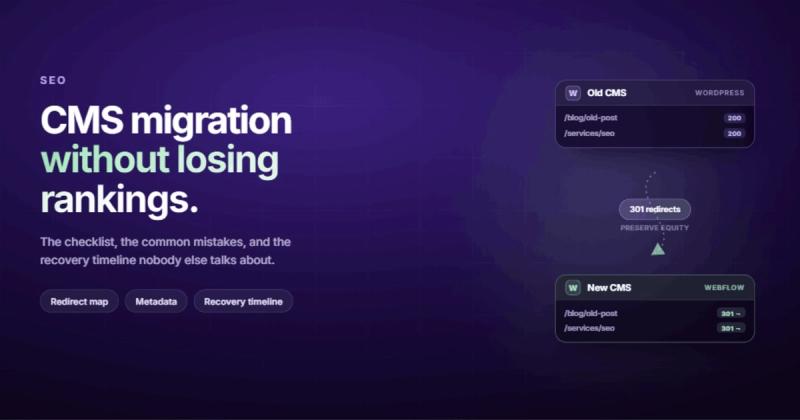
This is the big one. Every URL that changes during a migration needs a 301 redirect pointing from the old path to the new one. Not a 302. Not a JavaScript redirect. A proper server-level 301.
If your old blog lived at /blog/2024/03/post-title and your new CMS puts it at /blog/post-title, that's a URL change. Without a redirect, Google sees the old page as gone and the new page as brand new. All the authority, backlinks, and ranking signals the old URL accumulated? Gone.
I've seen sites lose 40-60% of organic traffic because someone forgot to export the redirect map. That's not a platform problem. That's a planning problem.
Metadata That Didn't Make the Trip
Title tags, meta descriptions, canonical URLs, Open Graph data. Your old CMS had all of this configured page by page. Your new CMS has empty fields waiting to be filled.
If you launch without carrying this over, Google has to re-figure out what each page is about. Sometimes it gets it right. Sometimes your carefully optimized title tag gets replaced with whatever the CMS auto-generates from the page name.
Page Speed Got Worse, Not Better
This one catches people off guard. You migrated to a "better" platform, but the new theme ships with 14 JavaScript libraries, uncompressed hero images, and a cookie banner that blocks rendering for 3 seconds.
Page speed is a ranking factor. If your old site loaded in 1.8 seconds and your new site loads in 4.5, that's not an upgrade. That's a regression with a fresh coat of paint.
Internal Links Pointing to Dead Ends
Your content probably links to other pages on your site. If those URLs changed and the internal links weren't updated, you now have dozens (or hundreds) of broken internal links. Each one is a dead end for both users and crawlers.
What Doesn't Hurt Your Rankings
There's a lot of unnecessary panic around migrations. Here are the things that won't kill your SEO:
Switching CMS platforms. Moving from WordPress to Webflow, or from Drupal to a headless CMS, doesn't inherently affect rankings. Google doesn't know or care what renders the HTML. It only sees the output.
Changing your site's visual design. A new layout, new colors, new typography. None of this affects how Google indexes your content. If the same content lives at the same URL with the same metadata, your rankings won't notice.
Restructuring your navigation. Moving a page from the main nav to a footer link doesn't make Google forget it exists. As long as the page is still crawlable and linked from somewhere, it'll get indexed.
The pattern is clear: changes to what Google can see (URLs, content, metadata, speed) matter. Changes to what's behind the curtain (CMS, design system, hosting provider) don't. Not directly.
The CMS Migration SEO Checklist
This isn't a "do these 47 things" checklist. It's the short list of things that actually prevent traffic loss. I've broken it into three phases because a migration is a process, not an event.
Phase 1: Before You Touch Anything
The pre-migration audit is where most of the real work happens. Skip this and you're building on sand.
- Crawl your current site. Use Screaming Frog, Sitebulb, or even a free tool like the Semrush site audit. Export every URL, its status code, title tag, meta description, canonical URL, and word count. This is your baseline. If you don't have a snapshot of what exists now, you can't verify that everything made it to the new site.
- Export your redirect map. If you already have redirects in place (from a previous migration, domain change, or URL restructure), export those too. Redirects need to carry forward. A redirect chain that goes old URL → middle URL → new URL is slower and leaks authority at each hop.
- Document your top-performing pages. Pull your Google Search Console data for the last 6 months. Sort by clicks. Your top 50 pages are the ones you absolutely cannot break. These get manual QA after launch.
- Benchmark your Core Web Vitals. Run PageSpeed Insights on 5-10 key pages. Screenshot the results. After migration, you'll compare these numbers to make sure performance didn't regress.
- Back up everything. Database, files, images, the whole thing. I once accidentally deleted a production WordPress database AND its backup on the same day. If that doesn't convince you to keep multiple copies in multiple places, nothing will.
Phase 2: During the Migration
This is where your website redesign SEO plan meets reality.
- Map every URL change. Create a spreadsheet: Column A is the old URL, Column B is the new URL. Every page, every blog post, every image URL if they've changed. This redirect map is the single most important document in the entire migration.
- Implement 301 redirects. Not 302s (temporary). Not meta refreshes. Not JavaScript
window.locationhacks. Server-level 301 redirects. In Webflow, you do this in the project settings under "301 Redirects." In most hosting environments, it's the.htaccessfile or a redirect rules configuration. - Carry over all metadata. Title tags, meta descriptions, OG tags, canonical URLs. Copy them from your crawl export and paste them into the new CMS, page by page. Tedious? Yes. This is the part of the content migration process that nobody wants to do but everyone needs to do.
- Preserve your content. If a page ranked for a keyword on the old site, the content on the new version of that page should still target that keyword. Migrations aren't the time to "refresh" your copy. Do that separately, after rankings stabilize.
- Update internal links. Every link that pointed to an old URL needs to point to the new one. Don't rely on redirects for internal links. Redirects are a safety net for external links and bookmarks. Internal links should point directly to the final destination.
- Keep your XML sitemap current. Submit the new sitemap to Google Search Console immediately after launch. This tells Google "here are all my pages, please re-crawl them."
Phase 3: After Launch
The migration isn't done when the site goes live. It's done when your traffic stabilizes.
- Test every redirect. Run your old URL list through a bulk redirect checker. Every single one should return a 200 at the final destination. Any 404s need to be fixed immediately.
- Monitor Search Console daily. Watch for crawl errors, coverage issues, and indexing problems. Google will start re-crawling your site within hours of detecting the changes. If something's broken, you want to know before it affects rankings.
- Compare Core Web Vitals. Run PageSpeed Insights on the same pages you benchmarked before. If any metric got significantly worse, fix it. Don't wait. Speed issues compound over time as Google re-evaluates your page experience signals.
- Keep redirects in place for 12+ months. Redirects need to stay live long enough for search engines to consolidate signals and for external sites to update their links. A year is the minimum. Honestly? Just leave them forever. There's no downside.
- Don't panic for 4-6 weeks. Some traffic fluctuation after a migration is normal. Google needs time to re-crawl, re-index, and re-evaluate. If traffic drops 5-10% in the first two weeks and then stabilizes, that's expected. If it drops 30% and keeps falling after week three, something's broken and you need to investigate.
The Scope Creep Problem Nobody Talks About
Here's the thing every CMS migration guide glosses over: the migration itself is rarely what kills your rankings. It's everything else you decided to do at the same time.
I've watched teams bundle a CMS switch with a full redesign, a URL restructure, a content rewrite, and a domain change. Then when traffic drops, nobody knows which change caused it. Was it the new URL structure? The rewritten copy that no longer targets the right keywords? The redesign that tripled the page weight? All of the above?
You can't debug what you can't isolate.
If you're moving platforms and you want to protect your SEO, change one thing at a time. Migrate the content and URLs first. Keep the same structure, same metadata, same copy. Let traffic stabilize. Then redesign. Then restructure. Each change gets its own window so you can measure the impact.
I once accidentally deleted a production WordPress database AND its backup on the same day. If that doesn't convince you to implement a proper backup strategy, nothing will. Migrations multiply this risk because you're running two versions of the site simultaneously.
This is the same principle behind any solid SEO process: measure, change one variable, measure again. Migration is just a bigger variable.
Can a CMS Migration Actually Improve Your SEO?
Yes. And this is the part that doesn't get enough attention.
A lot of older CMS setups carry years of technical debt. Bloated plugins that inject unnecessary scripts. Legacy code that blocks rendering. URL structures that were never optimized. Metadata fields that are hard to edit so nobody edits them.
Moving to a modern platform gives you a clean slate to fix all of that. We've migrated clients from WordPress to Webflow and seen page load times drop by 40-60% because we weren't dragging 23 plugins behind every page load anymore.
Better speed means better Core Web Vitals. Better Core Web Vitals means a better page experience score. And a platform that makes SEO settings easy to access means they actually get configured, instead of buried behind three plugins that conflict with each other.
The migration doesn't improve your SEO. What improves it is fixing the problems the old platform made too painful to fix. The migration is just the excuse to finally do it.
How Long Does SEO Recovery Take After a Migration?
If the migration was clean, there's nothing to "recover" from. Your traffic should hold steady within a 5-10% fluctuation window during the first 2-4 weeks, then stabilize.
If you lost significant traffic, the timeline depends on what went wrong:
| Issue | Typical Recovery Time |
|---|---|
| Missing redirects (fixed within a week) | 2-4 weeks |
| Missing redirects (fixed after a month) | 2-6 months |
| Lost metadata (title tags, descriptions) | 2-4 weeks after fixing |
| Major speed regression | 4-8 weeks after fixing |
| Content changes + URL changes + redesign (all at once) | 3-6 months (if you can isolate the issues) |
The key takeaway: how fast you catch and fix the problem determines the recovery timeline. This is why daily Search Console monitoring in the first month isn't optional. It's the difference between a two-week blip and a six-month recovery project.
Choosing a Platform That Won't Fight You on SEO
Since you're already migrating, you might as well move to something that makes SEO work easier, not harder. Here's what to look for in your new CMS:
- Custom title tags and meta descriptions per page (not auto-generated from page names)
- Clean, editable URL slugs
- Built-in 301 redirect management
- Auto-generated XML sitemaps
- Fast page rendering without heavy plugin dependencies
- Structured data support (or at least the ability to add custom code to the head)
- Image optimization built in (WebP conversion, lazy loading, responsive srcset)
Some platforms check every box out of the gate. Others need six plugins to get to baseline. If your new CMS requires more technical workarounds than your old one, ask yourself what you're actually gaining from the move. Sometimes the answer to Webflow vs WordPress is less about features and more about which platform lets you do the boring-but-important stuff without fighting the interface.
Frequently Asked Questions
Does changing your CMS affect SEO?
Not directly. Google doesn't rank based on what CMS you use. What affects SEO is the stuff that changes during the migration: URLs, page speed, metadata, and content. If you keep those intact (or redirect properly), your rankings will hold through a platform switch.
How long should I keep 301 redirects after a CMS migration?
At least 12 months. Honestly, just keep them forever. There's no performance penalty for having redirects in place, and removing them risks breaking links from external sites that haven't updated their references. Old blog posts, industry directories, partner websites. They all still point to the old URLs.
Can I change my URL structure during a CMS migration?
You can, but don't do it at the same time as the platform switch. Migrate first with the same URL structure. Let traffic stabilize for 4-6 weeks. Then restructure URLs in a separate phase with proper redirects. This way, if traffic drops, you know exactly which change caused it.
What's the biggest mistake people make during a CMS migration?
Changing too many things at once. The migration becomes a redesign becomes a content rewrite becomes a URL restructure. When traffic drops, there's no way to figure out which change is responsible. Keep the migration scope tight: same content, same URLs (or redirected), same metadata. Save everything else for later.
Do I need to resubmit my sitemap after migrating?
Yes. Submit your updated XML sitemap to Google Search Console as soon as the new site is live. This accelerates Google's re-crawling and helps it discover the new URL structure faster. Also submit any pages that have changed URLs individually using the URL Inspection tool for your highest-priority pages.
Will my backlinks still count after a CMS migration?
Yes, as long as 301 redirects are in place. A 301 redirect passes the vast majority of link equity from the old URL to the new one. Without redirects, those backlinks point to 404 pages and their authority effectively disappears. This is why the redirect map is the most important document in any migration plan.
Comments